


















Table of Contents
Get A Free Quote
Ever stared at your printer settings and noticed a little checkbox that says “Collate,” then just clicked print without thinking about it? You’re not alone. Most people ignore it completely until they face a messy stack of pages they have to sort by hand.
Here’s the short, simple version: collated printing means your printer puts each copy of your document together as a complete, correctly ordered set. No sorting, no guessing which page goes where. Page order sounds like a small thing, but when you’re printing dozens of copies of a report or a booklet, it makes a real difference here. This is especially true for anything with multiple pages such as reports, manuals, presentations and booklets etc.
What Does Collate Mean When Printing?
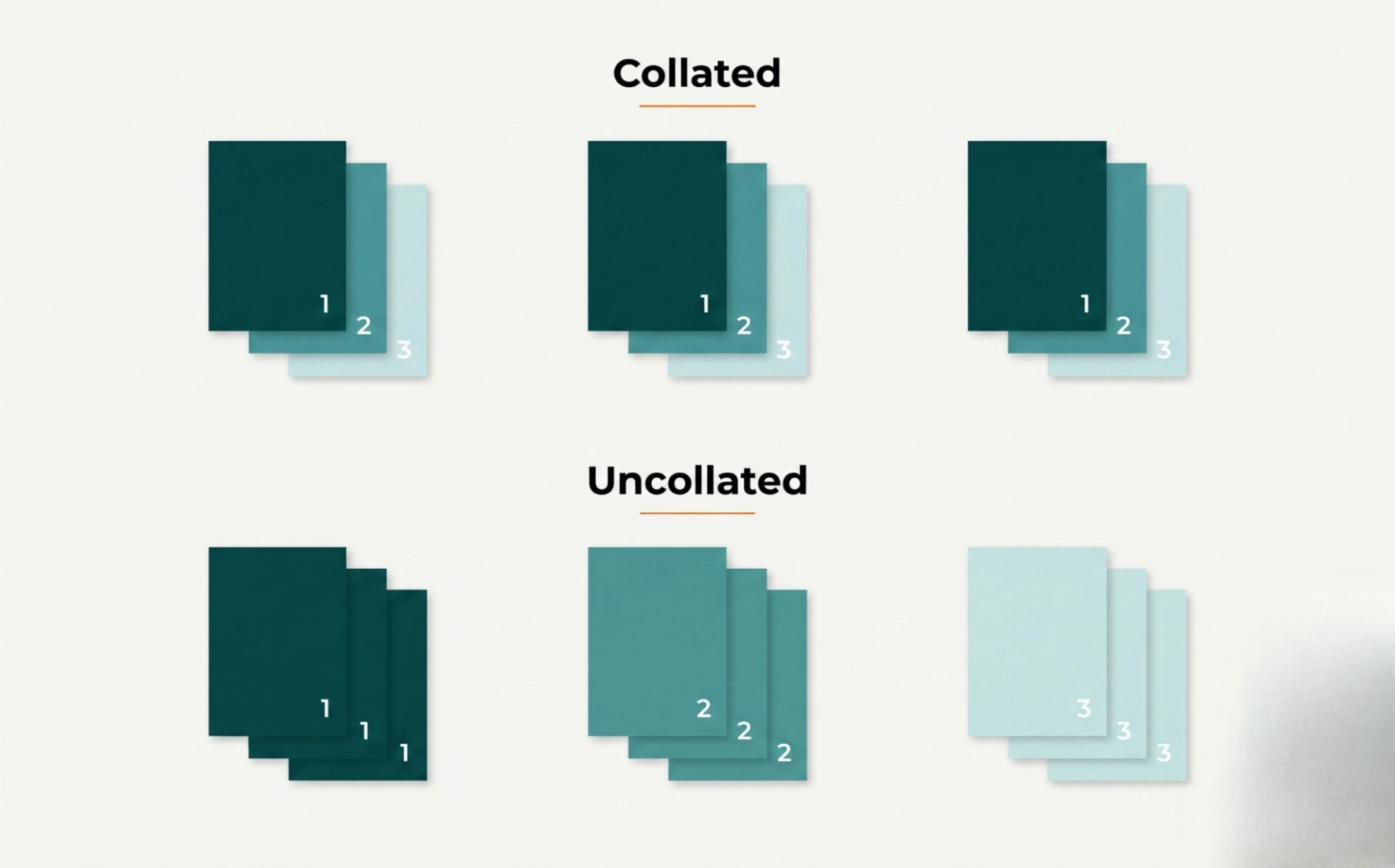
At its core, “collate” just means to put things in the right order. When you’re talking about printing, it means the printer arranges your pages into complete sets rather than dumping out a pile of duplicates.
So instead of printing every “page 1” first, then every “page 2,” and so on, a collated print job gives you finished sets straight out of the tray. Say you’re printing three copies of a four-page document. With collating turned on, you’d get:
- Copy 1: 1, 2, 3, 4
- Copy 2: 1, 2, 3, 4
- Copy 3: 1, 2, 3, 4
Each stack is already a full, ready-to-use document. No standing over the printer sorting pages into piles afterward.
How Does Collated Printing Work?
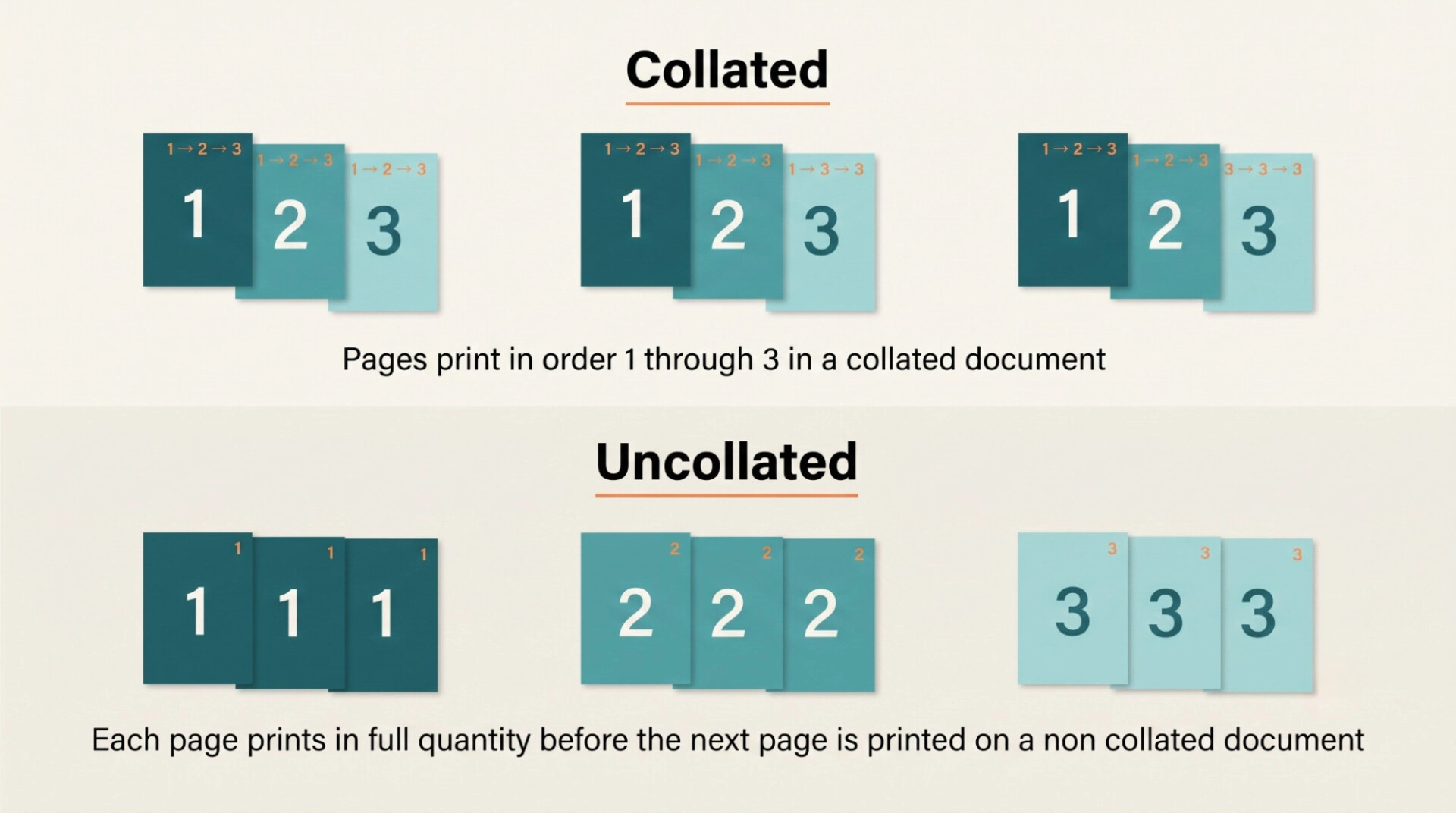
When collating is turned on, the printer basically treats each copy as its own mini print job, running them one after another instead of mixing everything together.
Let’s say you’re printing three copies of a five-page document. The printer will print pages 1 through 5, finish that entire set, then start over and print pages 1 through 5 again for copy two and once more for copy three. Every page of a given copy gets printed together before the printer moves on to the next one.
How to Use the Collate Function When Printing
Turning collating on is usually pretty simple, though where exactly you find it depends on your printer and software setup.
- Open the document you want to print.
- Go to the Print menu.
- Set the number of copies.
- Look for the “Collate” checkbox or dropdown.
- Switch it on.
- Take a quick look at the preview, then hit print.
One thing worth noting, this setting doesn’t always live in the same spot. It can move around depending on your printer model and whether you’re on Windows, Mac or something else, so poke around the print dialog if you don’t see it right away.
When Should You Use Collated Printing?
Anytime you’re printing several copies of something with more than one page, collating is probably going to help. That covers things like:
- Multi-page reports
- Books and booklets
- Presentations
- Manuals and instruction guides
- Training materials
- Legal documents
- Restaurant menus
- Scripts
- Magazines and journals
- Business documents
- School and academic materials
Basically, if you’re handing out complete documents to different people, collate is your friend.
What Are the Benefits of Collating Printed Documents?
There’s more to collating than just convenience, a few real advantages are:
Saves Time
You skip the whole step of manually sorting pages after they print.
Keeps Documents Organized
Every copy that comes out is already a full, complete set.
Reduces Sorting Errors
Fewer chances of a page going missing or ending up in the wrong spot.
Makes Documents Ready for Binding
Great for booklets, manuals, and reports that need to be bound afterward.
Makes Bulk Printing Easier
Especially handy when you’re printing copies meant for different people.
Does Collating Affect Print Quality?
Not really, no. Collating only changes how your pages are arranged and grouped. It has nothing to do with resolution or how sharp the print looks. Quality comes down to other factors: your printer’s settings, the paper you’re using, how much ink or toner is left, and the quality of the original file itself.
Can You Collate Double-Sided Documents?
Yes, and they actually work well together. Picture a six-page document printed both double-sided and collated. You’d get complete, correctly ordered sets with content on both sides of every sheet. Just be aware that not every printer can handle both features at once, so it’s worth checking your printer’s specs beforehand.
Common Mistakes to Avoid When Using the Collate Setting
A few small things can throw off an entire print job. Here’s what to think for:
- Assuming collate is the same thing as double-sided printing.
- Turning on collate for single-page documents, where it does nothing.
- Skipping a check of the page sequence before a big print run.
- Printing a huge batch without running a test copy first.
- Mixing up collated and uncollated output when reviewing your settings.
Final Thoughts: When Should You Use Collate?
Uncollated printing bundles identical pages together. All the page 1s, then all the page 2s and so on. Collated printing gives you complete, ready-to-go sets instead. If you’re printing anything with multiple pages that needs to stay in order, especially for a group of people, collating is almost always the smarter option. Here’s a simple way to remember it: if each person needs a full document, go for collate.
Frequently Asked Questions
Most modern printers and print drivers include it, but where it’s located and how it’s labeled can vary from one device to the next.
Not really. Collating only matters once you’ve got more than one page, so it won’t change anything for a single-page print.
This usually comes down to the collate setting being off, or set incorrectly for how many copies you’re printing. Worth double-checking before you send off a big job.